

Comment on page
Configuration options
How to configure Cover Reports
Cover Reports provides for a range of configuration options.
There are several config options available when Cover Reports is run as a Windows Service, Linux Service, Windows .bat, or macOS/Linux .sh. These can be configured locally via the
application.properties config file in the folder where the cover-reports instance is running, or globally via environment variables.- 1.If needed, copy the "template"
application.propertiesfile from[install]/bin/to the folder where thecover-reportsinstance is running. Edit theapplication.propertiesfile and edit/add the following, as required - if you don't need to change the default values you can leave the line(s) commented out.
# Cover Reports configuration
#server.port=<COVER-REPORTS-PORT>
#logging.file.name=<LOG-PATH>/cover-reports.log
# H2 configuration
#reports.h2.path=<H2-PATH>
# External PostgreSQL DB config
#spring.profiles.active=postgres
#spring.datasource.url=jdbc:postgresql://<DB-SERVER-HOSTNAME>:<DB-SERVER-PORT>/reports
#spring.datasource.username=reports
#spring.datasource.password=<REPORTS-DB-PASSWORD>
# Upload Authentication
#reports.requiredusername=username
#reports.requiredpassword=password
Field | Description |
|---|---|
server.port | Cover Reports listens on port 8080 by default. If this port is already in use, you can change it here. Note that if you change the port, this needs to be replicated when accessing the Cover Reports UI (via a browser) and when uploading reports bundles from Cover CLI and Cover Pipeline. |
logging.file.name | Cover Reports logs are saved to cover-reports.log by default, in the root directory of your Reports install. You can change the default path if needed. |
reports.h2.path | Cover Reports uses a local H2 database for coverage details and general data. Data files are stored in the root directory of your Reports install - you can change the default path if needed. |
External PostgreSQL DB config | If you wish to use an external PostgreSQL data in place of the default H2 database, define the settings in this section. See Using an external database server for details. |
Upload Authentication | If you wish to add authentication to uploads, define the settings in this section. See Upload authentication for details. |
Windows
macOS/Linux
Edit the
cover-reports.xml file in your Cover Reports installation. Edit/add the following environment variables in the <service> section, as needed.<env name="SERVER_PORT" value="8080"/>
<env name="LOGGING_FILE_NAME" value="%BASE%\cover-reports.log"/>
<env name="REPORTS_H2_PATH" value="%BASE%"/>
<env name="JAVA_HOME" value="<JAVA-PATH>"/>
<env name="SPRING_PROFILES_ACTIVE" value="postgres"/>
<env name="SPRING_DATASOURCE_URL value="jdbc:postgresql://<DB-SERVER-HOSTNAME>:<DB-SERVER-PORT>/reports"/>
<env name="SPRING_DATASOURCE_USERNAME value="reports"/>
<env name="SPRING_DATASOURCE_PASSWORD value="<REPORTS-DB-PASSWORD>"/>
<env name="REPORTS_REQUIREDUSERNAME value="username"/>
<env name="REPORTS_REQUIREDPASSWORD value="password"/>
Edit the
cover-reports.service file in your Cover Reports installation. Edit/add the following environment variables in the [Service] section, as needed.[Service]
User=cover-reports
Environment="SERVER_PORT=8080"
Environment="LOGGING_FILE_NAME=<LOG-PATH>/cover-reports.log"
Environment="REPORTS_H2_PATH=<H2-PATH>"
Environment="JAVA_HOME=<JAVA-PATH>"
ExecStart=<COVER-REPORTS-PATH>/cover-reports/bin/cover-reports
Environment="SPRING_PROFILES_ACTIVE="postgres"
Environment="SPRING_DATASOURCE_URL="jdbc:postgresql://<DB-SERVER-HOSTNAME>:<DB-SERVER-PORT>/reports"
Environment="SPRING_DATASOURCE_USERNAME="reports"
Environment="SPRING_DATASOURCE_PASSWORD="<REPORTS-DB-PASSWORD>"
Environment="REPORTS_REQUIREDUSERNAME="username"
Environment="REPORTS_REQUIREDPASSWORD="password"/>
Field | Description |
|---|---|
SERVER_PORT | Cover Reports listens on port 8080 by default. If this port is already in use, you can change it here. Note that if you change the port, this needs to be replicated when accessing the Cover Reports UI (via a browser) and when uploading reports bundles from Cover CLI and Cover Pipeline. |
LOGGING_FILE_NAME | Cover Reports logs are saved to cover-reports.log by default, in the root directory of your Reports install. You can change the default path if needed. |
REPORTS_H2_PATH | Cover Reports uses a local H2 database for coverage details and general data. Data files are stored in the root directory of your Reports install - you can change the default path if needed. |
JAVA_HOME | Java JDK PATH. |
COVER-REPORTS-PATH | macOS/Linux executable path for Cover Reports. |
SPRING... | If you wish to use an external PostgreSQL data in place of the default H2 database, define the settings using these environment variables. See Using an external database server for details. |
REPORTS... | If you wish to add authentication to uploads, define the settings using these environment variables. See Upload authentication for details. |
When using Cover Reports in a production grade environment you also need to provide an external PostgreSQL database in place of the default H2 database:
- 1.Create a new database and user on the PostgreSQL server.
- 2.Grant all privileges on the new database to the new user.
- 3.Define the PostgreSQL settings as detailed above (local config or global environment variables).
Field | Description |
|---|---|
spring.profiles.active
SPRING_PROFILES_ACTIVE | Profile type - set this value to postgres |
spring.datasource.url
SPRING_DATASOURCE_URL | URL for the PostgreSQL database created for Cover Reports data, including the name of the database. |
spring.datasource.username
SPRING_DATASOURCE_USERNAME | Username used to access the database. |
spring.datasource.password
SPRING_DATASOURCE_PASSWORD | Password used to access the database. |
Cover Reports listens on port 8080 by default. If this port is already in use, you can change it in the
docker-compose.yml file. Note that if you change the port, this needs to be replicated when accessing the Cover Reports UI (via a browser) and when uploading reports bundles from Cover CLI and Cover Pipeline. To change the port:- 1.In your shell, navigate to
$COVER_REPORTS_HOMEand stop Cover Reports using:
docker compose down
- 2.Edit the
docker-compose.ymlfile and update theportsvalue. Note that the value specified is in the format<external-port>:<internal-port>- update the<external-port>value only.
```shell
ports:
- "9090:8080"
```
- 3.From the
$COVER_REPORTS_HOMEdirectory, start Cover Reports using:
docker compose up -d
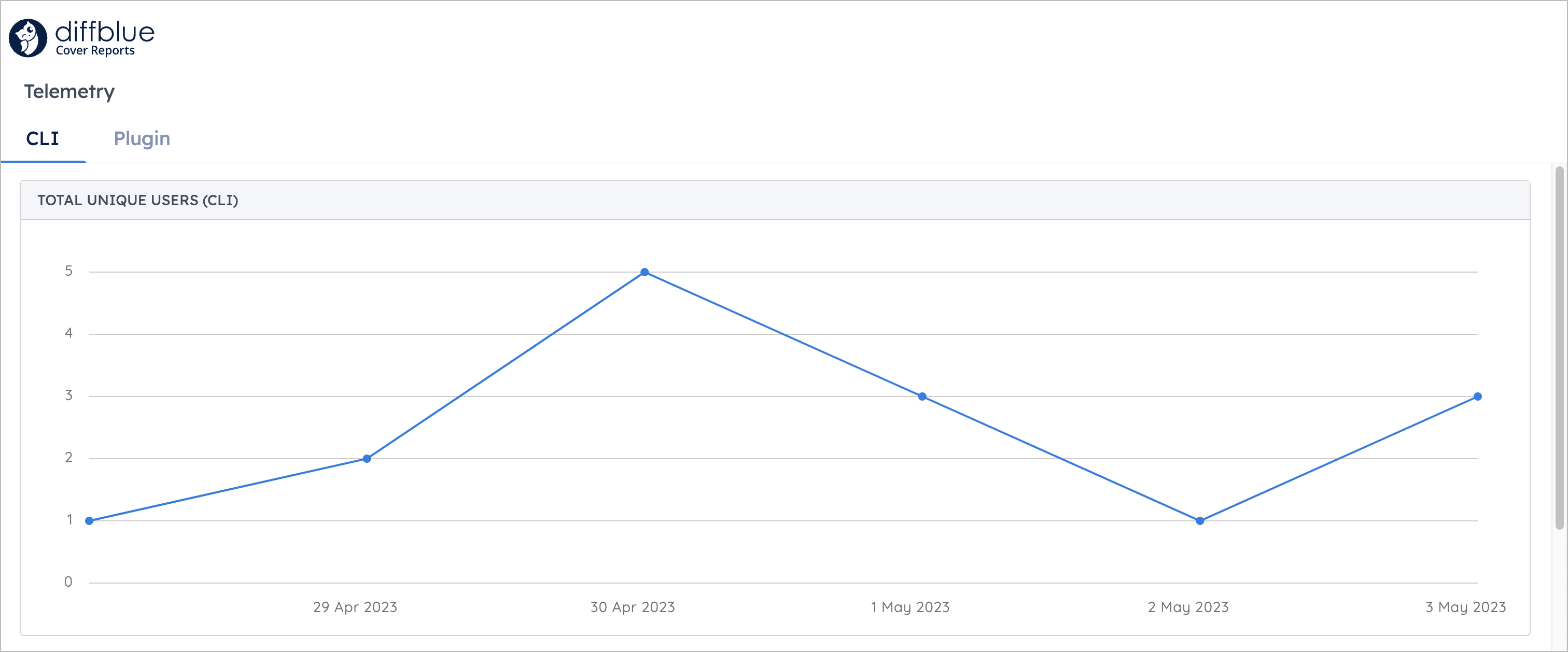
Cover Reports can collect usage telemetry from Cover CLI and Cover Plugin installations to give you vital information on usage across your organization. To configure telemetry:
- 1.Telemetry endpoints are configured using the
telemetry.propertiesfile in your Cover CLI and Cover Plugin installations. Edit/add the following section:
#Named section 'reports'
name[reports]=Cover Reports
backend[reports]=cover-reports
api_url[reports]=http://cover-reports.mycompany.com:8080/telemetry/event
Field | Description |
|---|---|
name | Useful name. |
backend | Data endpoint type, set to cover-reports |
api_url | Endpoint URL to send data to. Set to the /telemetry/event path using the IP address or URL of your Cover Reports instance. For example, http://cover-reports.mycompany.com:8080/telemetry/event |
- 2.Navigate to your Cover Reports telemetry home page, e.g.
http://cover-reports.mycompany.com:8080/ui/telemetry - 3.From this view, you can select either the CLI tab for CLI events, or the Plugin tab for plugin events:
By default, any Diffblue Cover user can upload reports bundles to Cover Reports. However, you may want to restrict and/or secure access using upload authentication. For example, you may want to restrict upload to your CI processes only, so that the data and upload timings are consistent.
Docker
Zip / Exe
- 1.Stop Cover Reports by running:
docker compose down - 2.In your
docker-compose.ymlfile, add two new environment variables (REPORTS_REQUIREDUSERNAMEandREPORTS_REQUIREDPASSWORD), and replace<username>and<password>with the username and password to use for uploading reports bundles:
report-web:
depends_on:
postgres:
condition: service_started
environment:
REPORTS_REQUIREDUSERNAME: <username>
REPORTS_REQUIREDPASSWORD: <password>
Note: Use ASCII characters only in your username and password. Also, do not use an empty string as this may cause unexpected behavior.
- 3.Save your changes to
docker-compose.ymland start your Cover Reports instance by running:docker compose up
- 1.Stop Cover Reports (if currently running).
- 2.In your
application.propertiesfile, add two new variables (reports.requiredusername=usernameandreports.requiredpassword=password), replacing<username>and<password>with the username and password to use for uploading reports bundles:
reports.requiredusername=<username>
reports.requiredpassword=<password>
Note: Use ASCII characters only in your username and password. Also, do not use an empty string as this may cause unexpected behavior.
- 3.Save your changes and start your Cover Reports instance.
Alternatively you can add these two variables to your environment variables:
REPORTS_REQUIREDUSERNAME: <username>
REPORTS_REQUIREDPASSWORD: <password>
For Cover Reports Release 2023.11.01 or earlier, use
dashboard.requiredusername, dashboard.requiredpassword, DASHBOARD_REQUIREDUSERNAME, and DASHBOARD_REQUIREDPASSWORD. For Cover Reports Release 2023.11.02 and later, use reports.requiredusername, reports.requiredpassword, REPORTS_REQUIREDUSERNAME, and REPORTS_REQUIREDPASSWORD.Once upload authentication has been enabled, reports bundles can be uploaded from Cover CLI and Cover Pipeline using the username and password defined above. See Authenticated uploads for details.
Last modified 20d ago